
(...)-Loading article
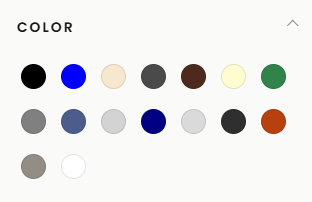
Color Swatches is a component used to display product color variants as swatches (color blocks, circles, or thumbnails) instead of plain text.
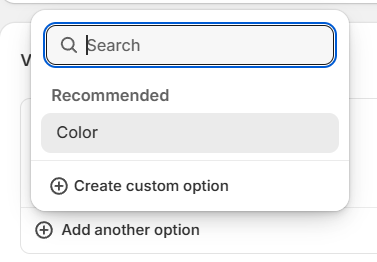
To use color swatches, on the product creation/editing page, under Variants -> select the Add another option button -> select Color
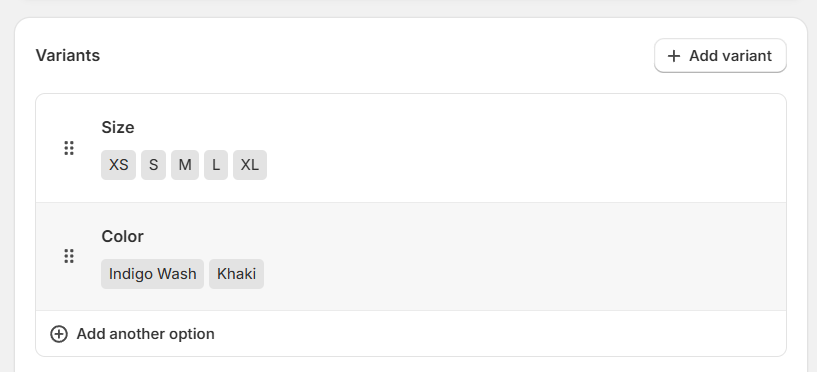
If your product already has a Color option and still displays the color as text, as shown in the image below.
Then click on the Color section to expand the Color options. In the top right corner, you'll see the metafield connection icon, as shown in the image.
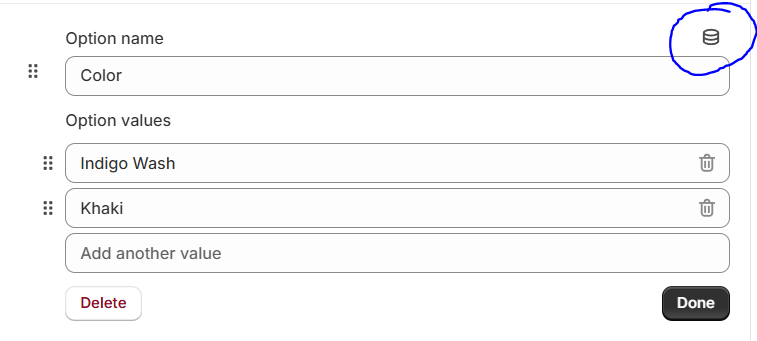
Click the connection icon -> then select Color.
Shopify color patterns support basic colors such as:
When you name your variant options as described above, the full color will be displayed. However, if your colors are not basic but special colors, such as Indigo Wash or Khaki, follow these steps:
In your Shopify Admin, go to Settings. In the left-hand menu, select Metafields and metaobjects. Scroll down to Metaobject definitions, where you will see a Definition name called Color. Select this.
A new page will appear. At the top, click the Add entry button.
Here, set up as follows:
Tips: A simpler way to directly access the Add Entry page instead of going through multiple complex steps: After connecting metafields in the Color option on the product edit page -> select your existing color / or click Add color -> then a dropdown appears -> on the last line select Add new entry
To enable or disable color swatches, refer to the available settings in Global Theme Settings -> Product