
(...)-Loading article
As shoppers, we've all been there: finding a product we love, only to discover it's sold out with no restock date in sight. The Drop Calendar section is designed to enhance the shopping experience and impress your customers, encouraging repeat visits.
Beyond restock notifications, it's also perfect for announcing new products, limited editions, or upcoming releases.
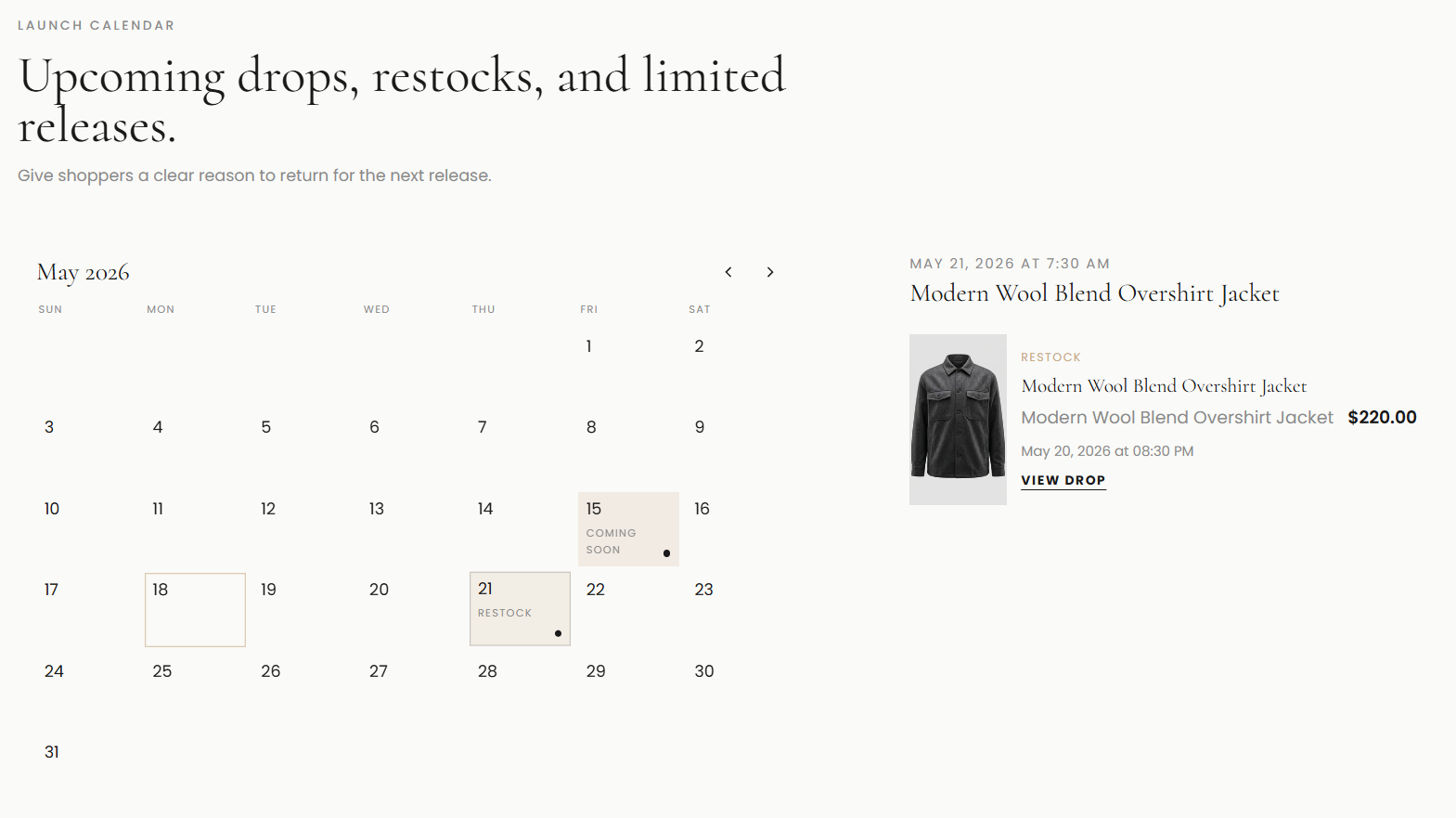
If you are new to Shopify, refer to how to create metaobjects here:
Building a metaobject →or
Creating and connect a metaobject →In the Theme Editor section, options are available to customize the heading, text description, and label.
To set up a product that needs to be restocked, has a release date, or similar, you need to create a metaobject.
To create a metaobject, go to your Shopify Admin, then navigate to Content -> Metaobjects -> and in the top right corner, select Add Definition.
Then a new panel appears. In the fields, enter the following:
In the Name field, you must enter `drop_event` exactly as shown for the section to recognize the metaobject. If you do not enter `drop_event` correctly, the section will not work.
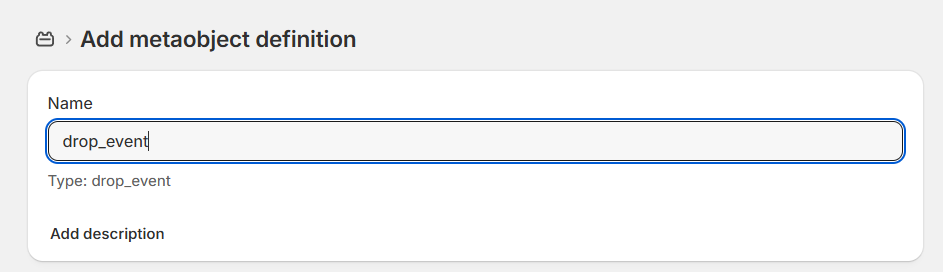
Then, in the Field section, create and enter the following fields:
Once fully created, it will look like this image
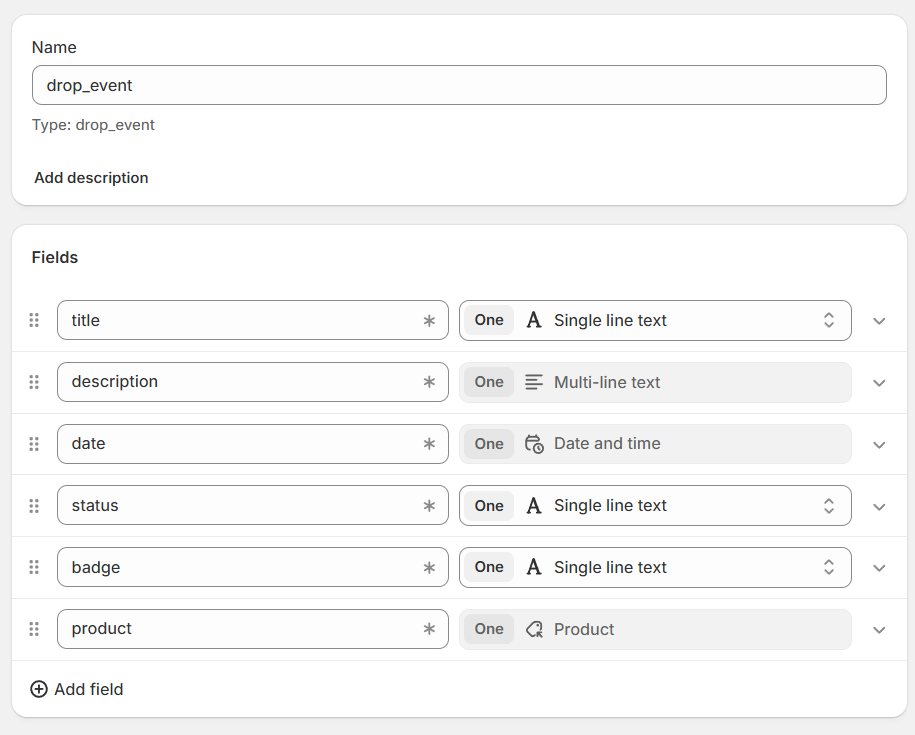
Field explanations:
Let's say you have a product that's out of stock, and you plan to restock it on May 30, 2026. Here's how to set that up:
Go to Content -> Metaobjects -> then under Custom, you'll see the `drop_event` metaobject we created.
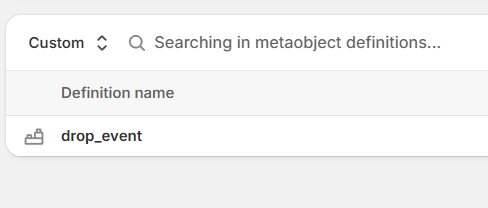
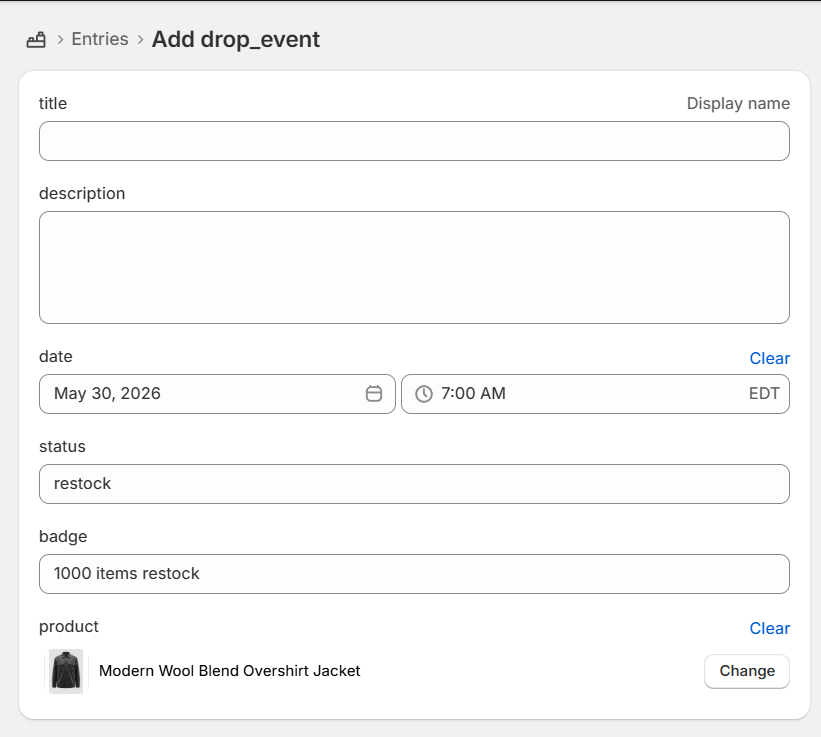
Click on drop_event, then select Add entry. I'll leave the title and description fields blank to use the product's title.
For the date, I'll choose May 30, 2026, and set the restock time to 07 AM. I'll set the status to "restock" and the badge to "1000 items restock." For the product, I'll select the hypothetical sold-out product.
It will look like the image below.
Then I click Save.
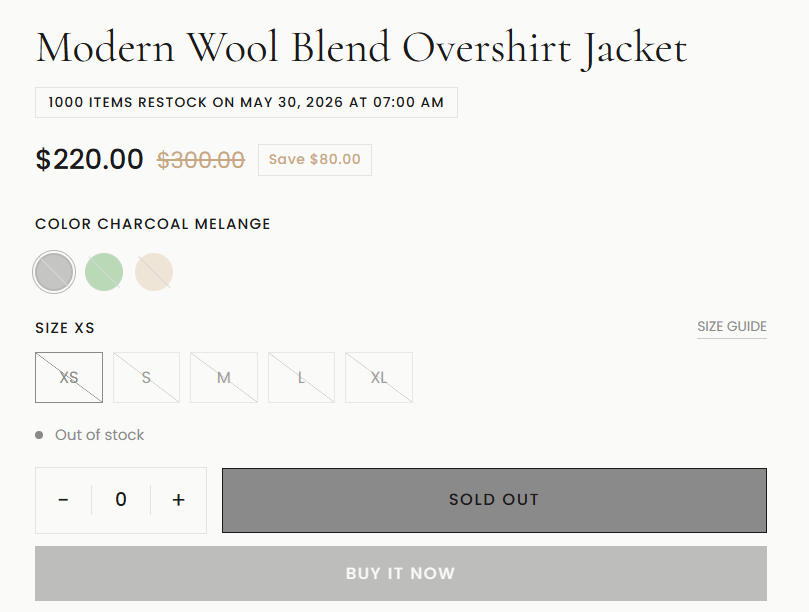
Now, on the product details page, the text shown below will appear for that product. You can toggle its visibility in the section's settings within the Theme Editor.
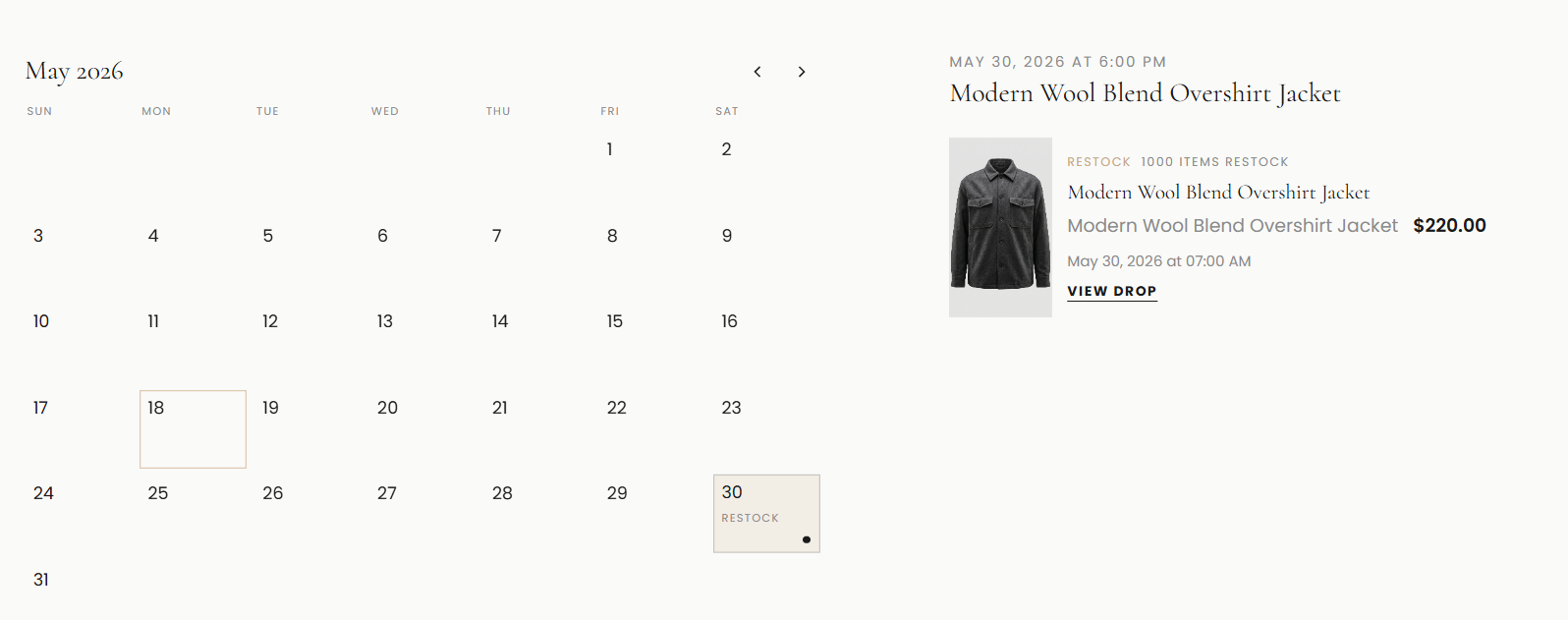
And in the Drop Calendar section
Note: For the status, you need to use the theme's standard format with the following variables. If entered incorrectly, it will not work.
You can create multiple product drops on the same day.