(...)-Loading article
To add a mega menu, in the Theme Editor on the left, select Header, then select Add Block -> Mega Menu. Then, in the Top-level Menu item field, you need to enter the exact name of the menu you created in your Shopify Admin.
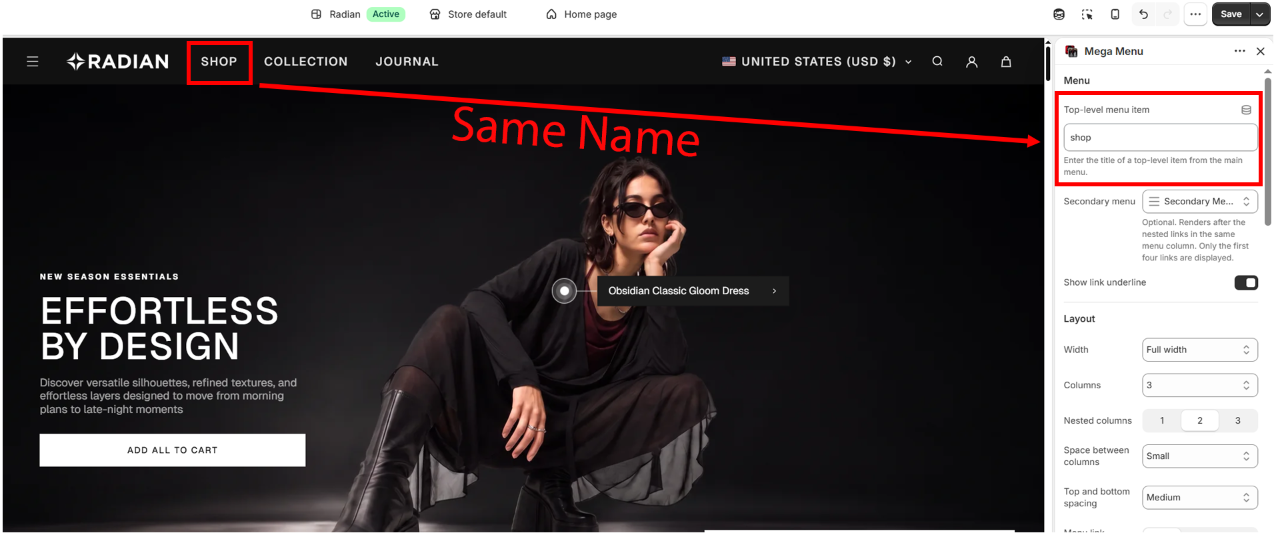
Radian is designed as a Mega Menu with high flexibility for customization, where the way columns are displayed is designed to be easily customized.
Take a look at the image below: the default settings use Columns as 3, and Nested Columns as 2.
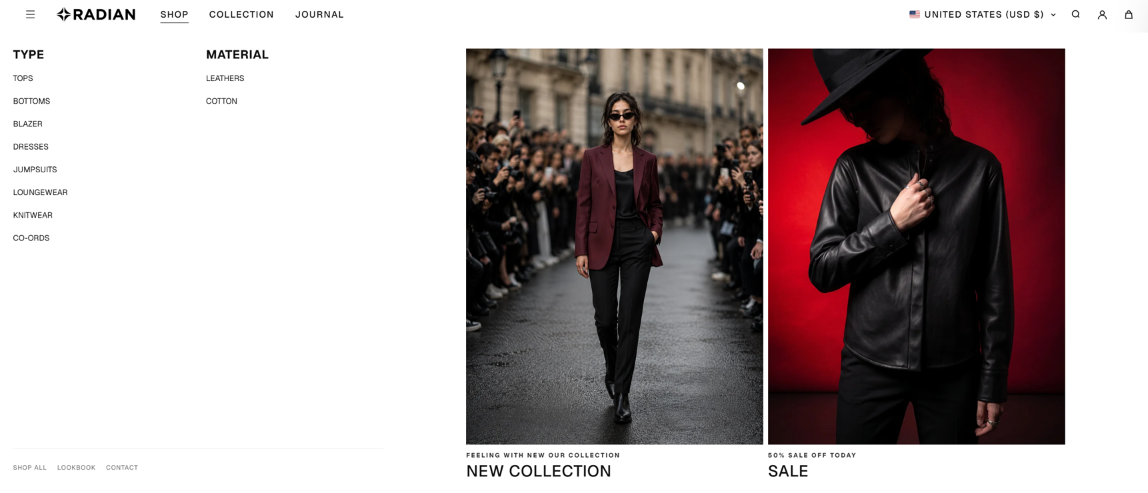
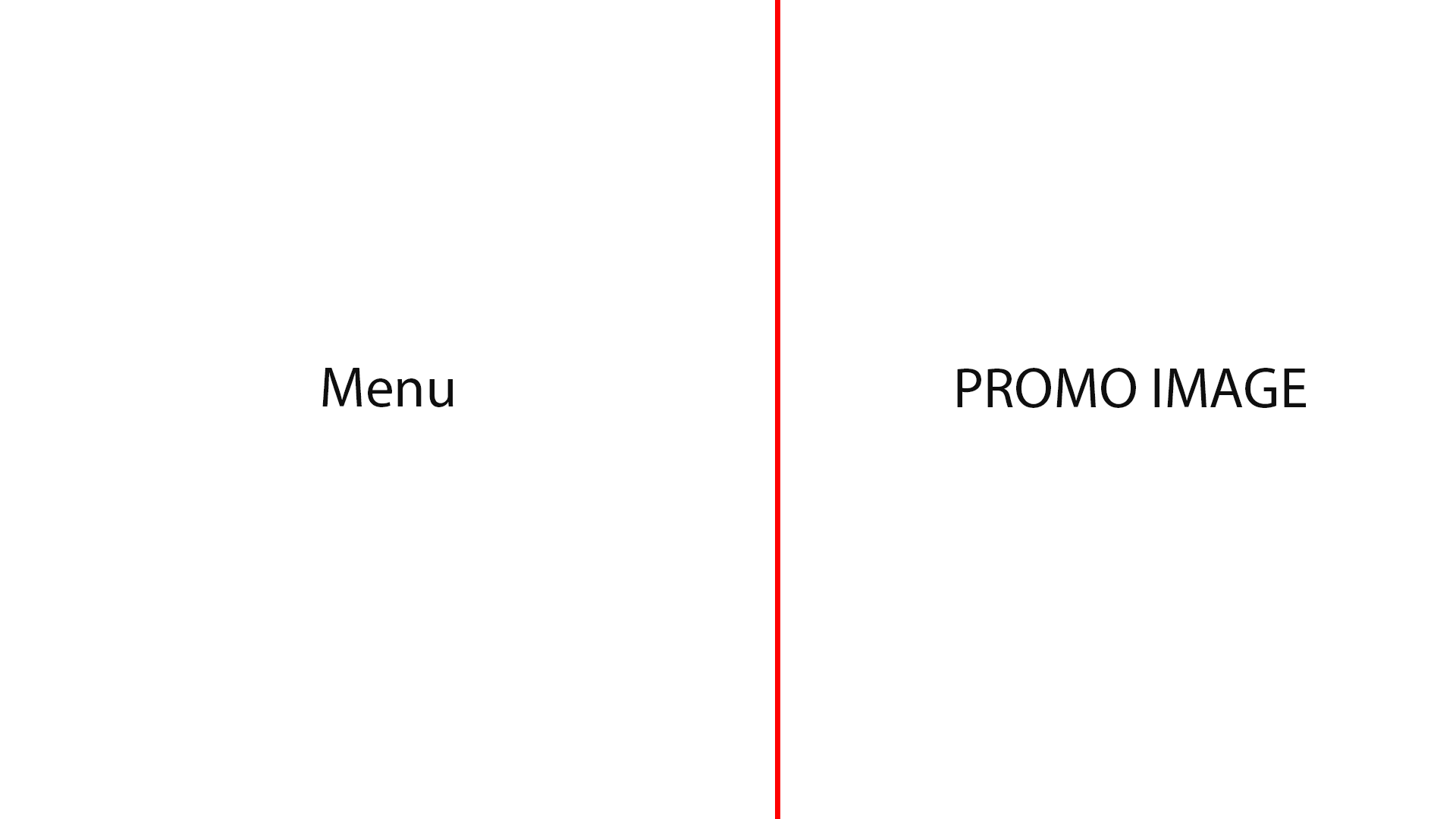
How does it work, then? Suppose we have 1 menu and 2 promo images (banners). When you set Columns to 3, it distributes them evenly across all 3 components, as shown in the image below.
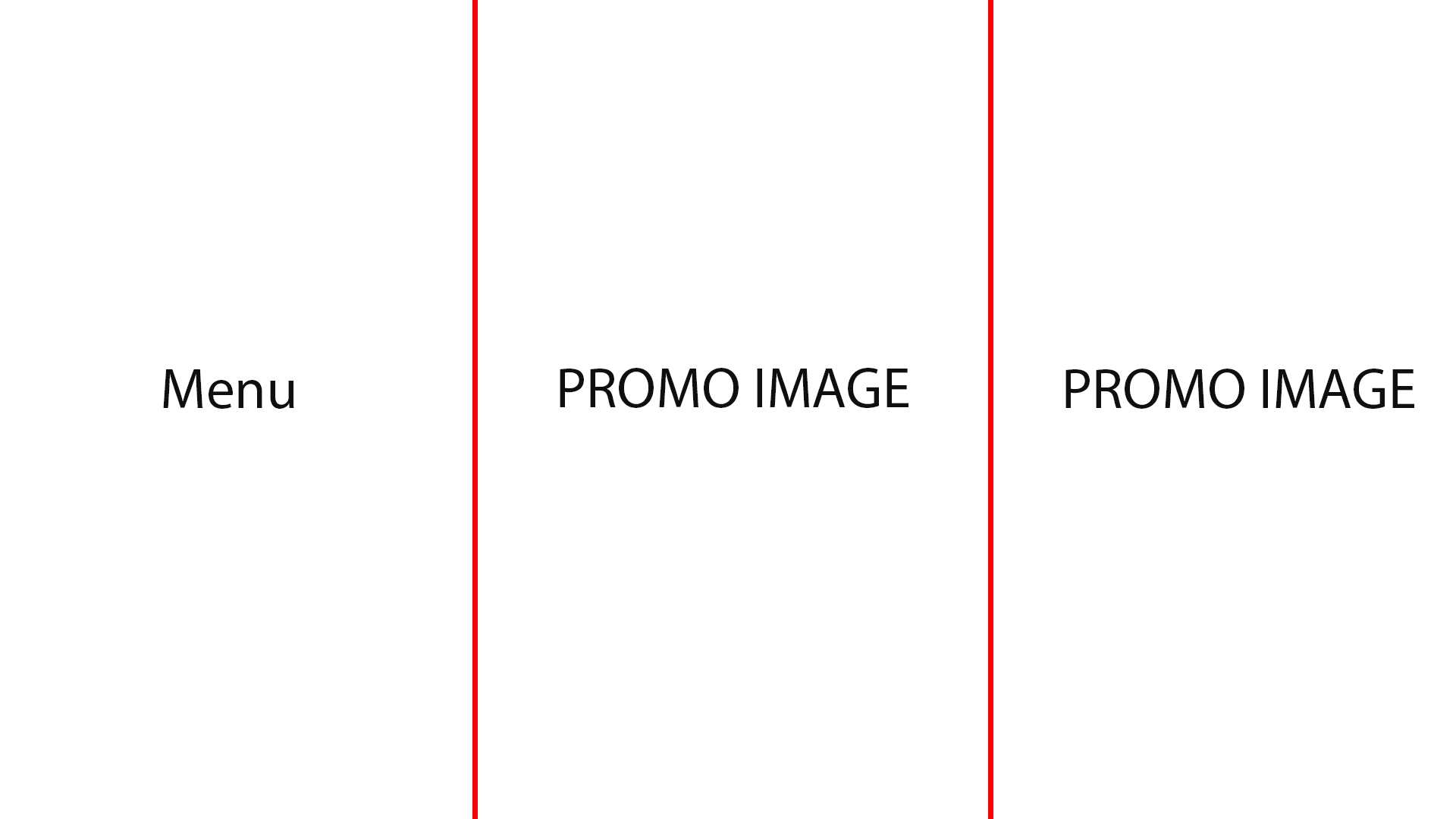
In case there is still 1 menu and 2 promo images, but if you set Columns to 2, Radian will prioritize displaying the Menu and remove 1 of the second promo images as shown in the image below
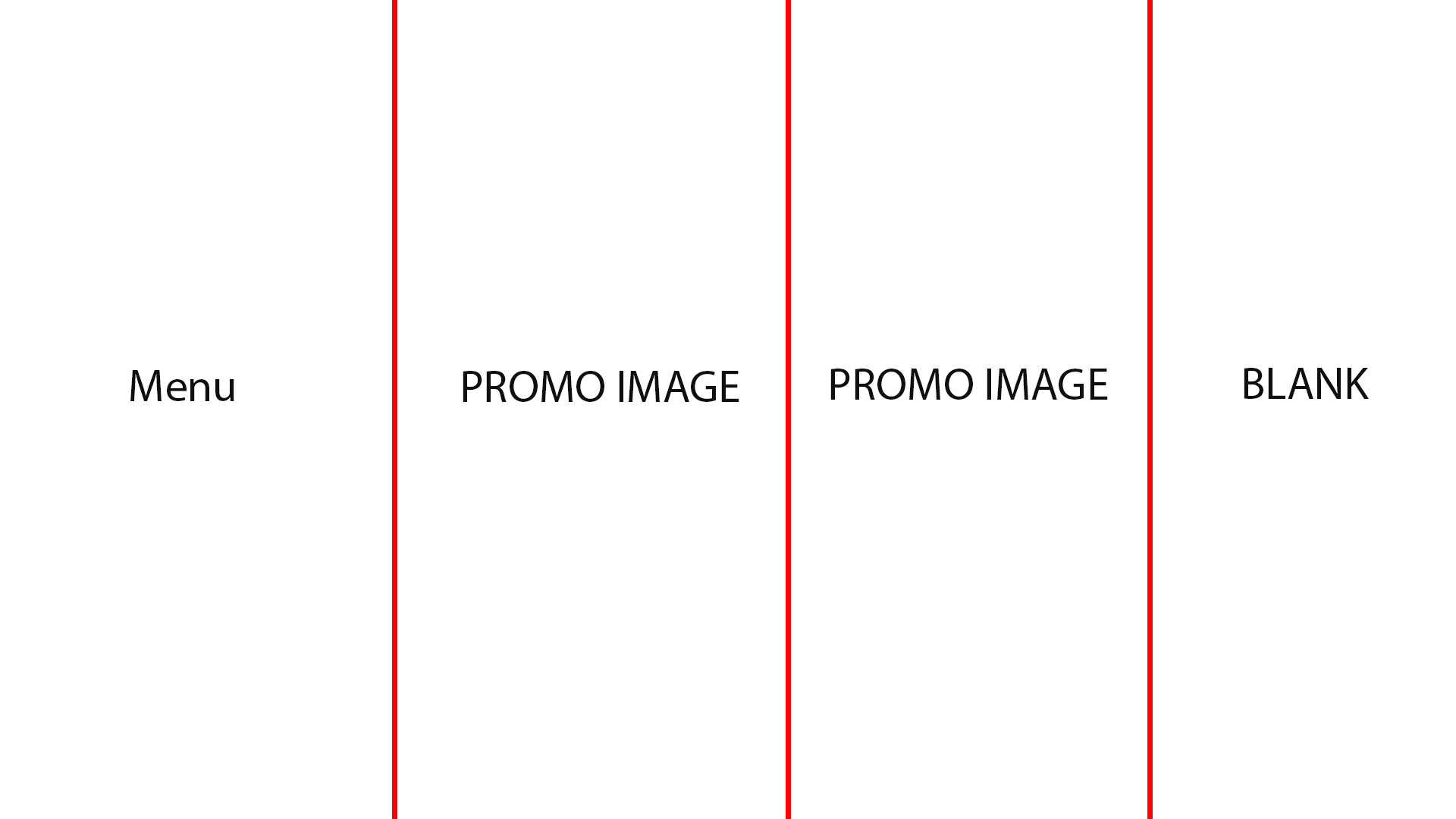
If you have 1 Menu and 2 promo images, but set Columns to 4, it will display as follows
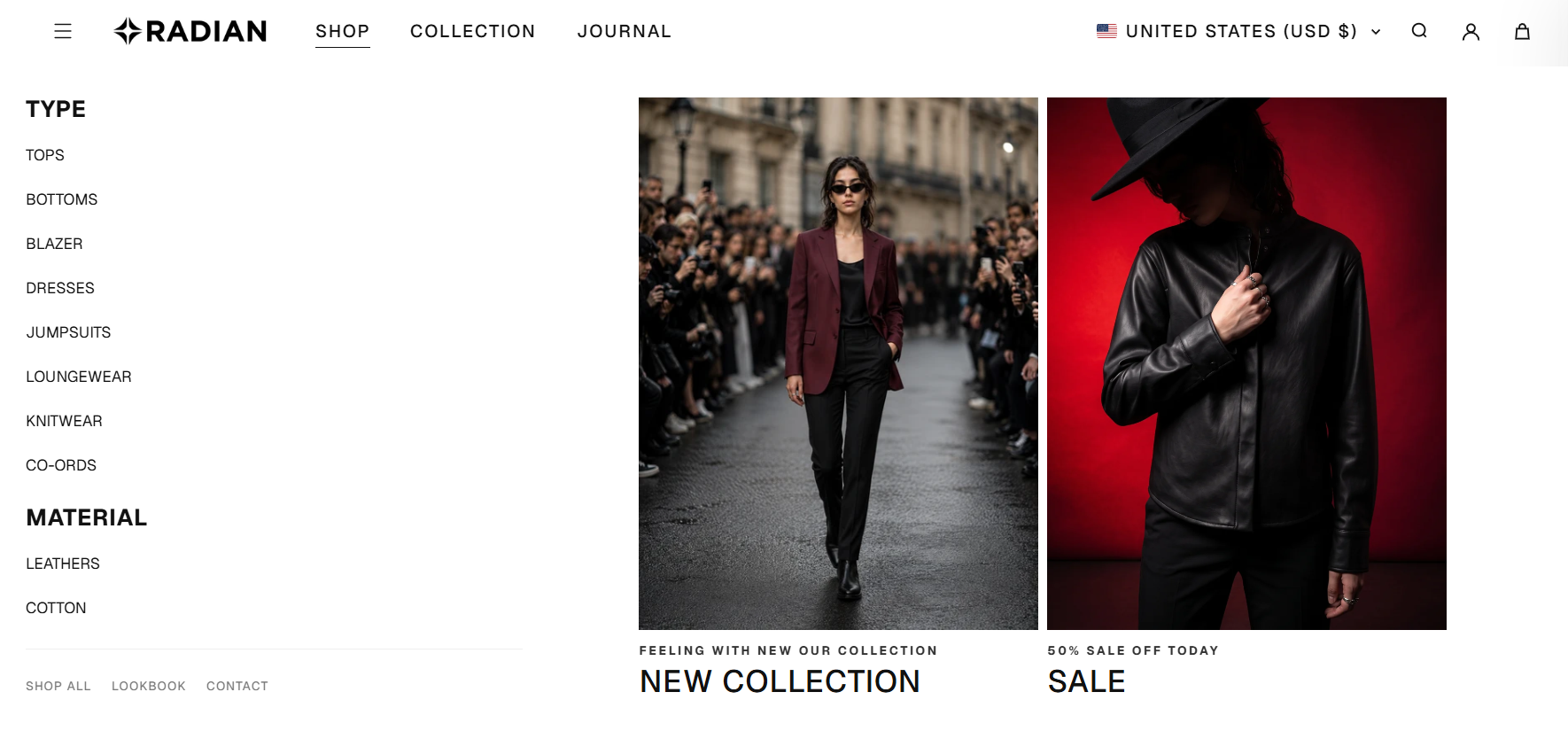
Similar to Columns, Nested columns apply only to the Menu columns. That is, if your menu has a hierarchical submenu, it displays in each column instead of being laid out vertically in a single column
Reference image below:
Nested Columns: 1
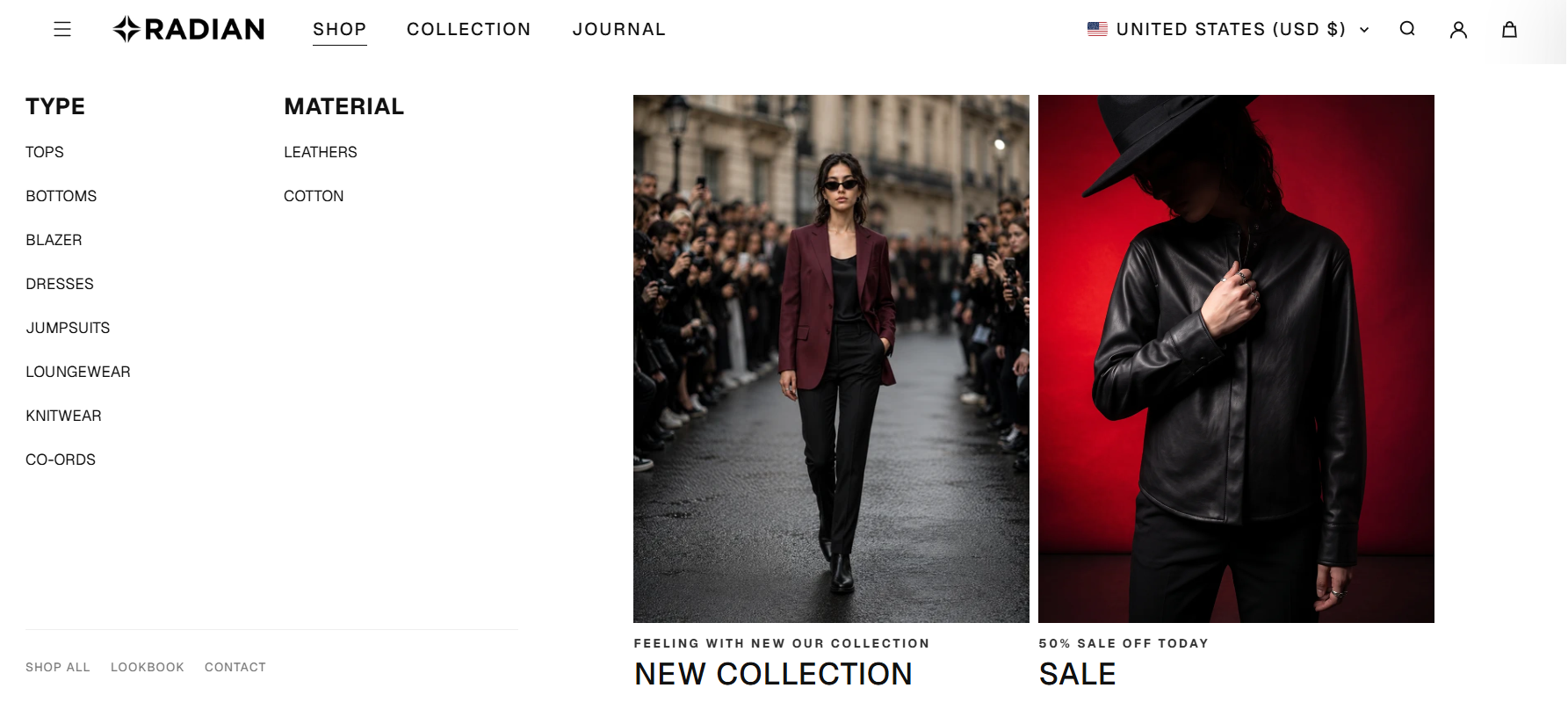
Nested Columns: 2
Nested Columns: 3
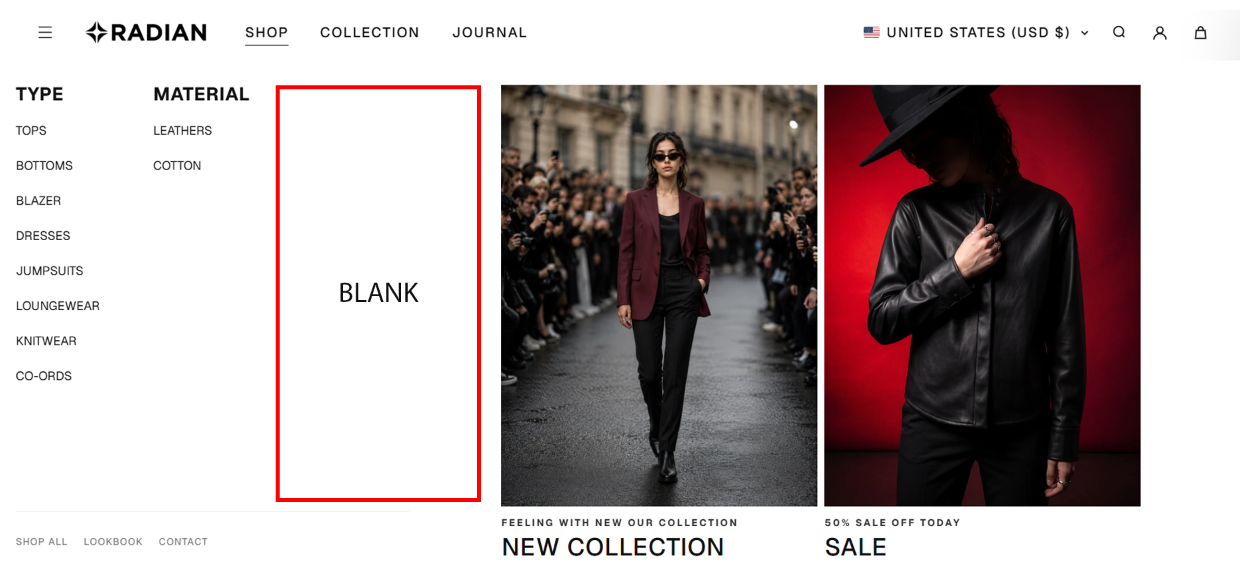
As you can see in the image below, when Nested columns is set to 3 but my menu only has 2 submenus, it will create empty space in the third column